Alpine Linux Desktop Setup
I’m switching to academia soon, which means I will have to hand in my company laptop. Luckily, I have a dusty old IdeaPad to help me bridge the coming months. My usual Linux desktop setup, NixOS, feels a bit sluggish on this old hardware. Alpine Linux is famous for its low resource requirements, making it the perfect candidate to revive my laptop.
This post documents how I set up Alpine with the Xfce desktop environment. Per definition, setting up a personal PC is very opinionated, but hopefully this post can be a starting point for others who want to do the same.
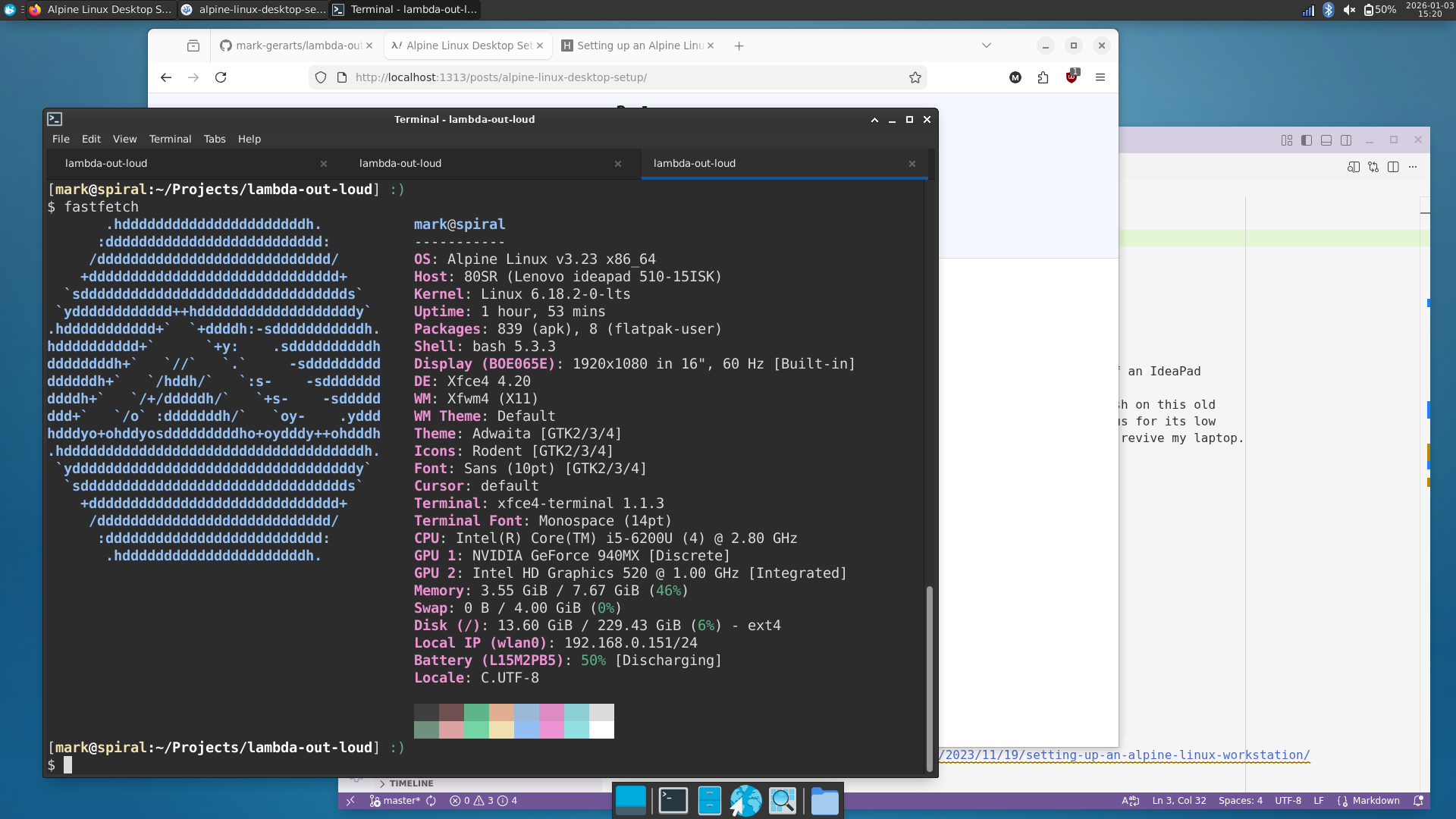
Alpine Linux running several applications on Xfce.
Why Alpine
Alpine’s beauty lies in its simplicity. It is my server OS of choice for some years already. I fell in love with it because of how easy it is to understand all the moving parts. Alpine’s minimalism resonates with how I want to use, manage, and create software.
Several things make Alpine unique:
- Alpine is tiny — a minimal installation only takes 130MB of storage1.
- It has low resource requirements, not only for disk size but also for RAM usage.
- Alpine’s package manager, APK, is best-in-class. APK is fast and intuitive to use and configure.
- Most distributions use systemd as their init system, but systemd’s everything-and-the-kitchen-sink approach goes against Alpine’s principles. Instead, Alpine ships with OpenRC, which is simple and fast.
Everything is a trade-off though, so there are some disadvantages to consider with Alpine:
- Because Alpine is tiny and simple, it requires a lot of extra work to set up something as complex as a desktop OS — hence this blog post.
- Alpine is built on musl libc. I admire the effort, but this means that proprietary binaries are unlikely to work on Alpine out-of-the-box.
- Alpine’s userbase is small, meaning fewer packages2 and fewer people to ask for help.
For me, these pains are well worth the gain.
Initial Setup
After booting Alpine from a USB, log in as the root user without a password.
From here, run setup-alpine and answer the prompts. I enable the community
repository, create a user for myself, and enable full disk encryption (FDE) by
opting for cryptsys when prompted for the installation method. After this,
unplug the USB and reboot into Alpine.
Terminal Bleep
Alpine only installs the bare minimum, so after the reboot we are greeted by a terminal login prompt. When using tab-completion, my IdeaPad emits an uncomfortably loud terminal bleep. I silence it by removing the kernel module and blacklist it to make the change permanent:
rmmod pcspkr
echo "blacklist pcspkr" >> /etc/modprobe.d/blacklist.conf
Xfce
Alpine has a setup-desktop script to easily install and configure a desktop
environment. However, this script caused an
issue with my
network drivers on my first installation attempt, making me unable to connect to
the internet. The workaround is to first add the following config:
echo "rc_need=udev-settle" > /etc/conf.d/networking
And only then run the setup-desktop script. I like Xfce as my desktop, as it
lies close to Alpine’s small-and-simple philosophy.
setup-desktop xfce
Log in Automatically
At this point I reboot again to see if the display manager (LightDM) works. As
expected, it does! However, it is a bit tedious to have to type my password to
decrypt the disk and again to unlock the display manager. That’s why I prefer to
configure autologin for LightDM. This is done in the [Seat:*] section of
/etc/lightdm/lightdm.conf:
# ...
[Seat:*]
autologin-user=mark
autologin-user-timeout=0
# ...
Disable DHCP on Boot
When I rebooted, I also noticed that Alpine waits for DHCP to finish before
continuing the boot process. This is good for servers, but not really needed for
a desktop PC. Hugo Osvaldo Barrera solves this
problem
by removing the dhcp lines from /etc/network/interfaces3:
# /etc/network/interfaces
auto lo
iface lo inet loopback

auto eth0
# v Remove/comment this line v
# iface eth0 inet dhcp

auto wlan0
# v Remove/comment this line v
# iface wlan0 inet dhcp
And then configure dhcpcd instead:
apk add dhcpcd
rc-update add dhcpcd default
Bluetooth
Setting up bluetooth is as easy as adding a package and enabling the service:
apk add blueman
rc-update add bluetooth default
Sound
I install the following packages to have sound and a tray icon in Xfce:
apk add pipewire pipewire-pulse pipewire-alsa pipewire-tools xfce4-pulseaudio-plugin pavucontrol
Bash as the Default Shell
Alpine ships with the ash
shell. I prefer Bash for portability across servers. I can change this by
editing /etc/passwd, but I opt for chsh from the shadow package because
this is easier to script (more on that later).
apk add bash bash-completion shadow
chsh mark --shell /bin/bash
QWERTY-fr Keyboard
I live in Belgium, which means I often have to type French accents. QWERTY-fr is a fantastic keyboard layout that uses the right alt key to type special characters, but is a standard QWERTY layout otherwise.
Since Xfce still uses X11, we can use setxkbmap to configure this layout.
First, download QWERTY-fr and install the symbols file:
wget -q https://raw.githubusercontent.com/qwerty-fr/qwerty-fr/master/linux/us_qwerty-fr \
  -O /usr/share/X11/xkb/symbols/us_qwerty-fr
Then I add a startup application that activates this layout:
mkdir -p ~/.config/autostart
touch ~/.config/autostart/qwerty-fr.desktop
Where the desktop file has the following contents:
[Desktop Entry]
Encoding=UTF-8
Version=0.9.4
Type=Application
Name=setxkbmap
Comment=
TryExec=setxkbmap
Exec=setxkbmap us_qwerty-fr
OnlyShowIn=XFCE;
RunHook=0
StartupNotify=false
Terminal=false
Hidden=false
When Xfce is ready to switch to Wayland, I can use the solution from this GitHub issue instead.
Reboot & Shutdown as a Regular User
My preferred way of shutting down or rebooting my PC is opening a terminal with
Ctrl+Alt+T and typing poweroff or reboot.
However, this requires typing my user password first, which is tedious. I create
a doas config in /etc/doas.d/doas.conf that allows my user to execute these
commands without a password:
# /etc/doas.d/doas.conf
permit nopass mark as root cmd /sbin/poweroff
permit nopass mark as root cmd /sbin/reboot
And finally I add the following aliases to ~/.bashrc:
alias poweroff="doas /sbin/poweroff"
alias reboot="doas /sbin/reboot"
NetworkManager
I prefer NetworkManager over Alpine’s networking out of familiarity (the servers
at work use it), and for the handy nm-applet. The Alpine wiki has an
excellent guide on setting it
up, I recommend simply following the instructions over there. For me, I create
the following config files:
# /etc/NetworkManager/conf.d/any-user.conf
[main]
auth-polkit=false
# /etc/NetworkManager/NetworkManager.conf
[device]
wifi.scan-rand-mac-address=yes
wifi.backend=wpa_supplicant
Install the NetworkManager packages — these are mostly pick-and-choose, e.g.,
nm-tui is personal preference and networkmanager-wifi wouldn’t make sense on
a device with only a wired connection.
apk add networkmanager network-manager-applet networkmanager-tui networkmanager-wifi
And swap around the networking services:
rc-service networking stop
rc-update del networking boot
rc-service wpa_supplicant stop
rc-update del wpa_supplicant boot
rc-update add networkmanager default
GPU
On a fresh boot, I get a black screen with a single white underscore for about 30 seconds, after which LightDM shows up. It appears that the X server waits 30 seconds to initialize my graphic drivers, unsuccessfully.
My laptop has an Intel integrated GPU and an NVIDIA graphics card. NVIDIA is famously problematic on Linux because they only provide proprietary blobs. On Alpine this is extra frustrating, because these blobs are incompatible with musl. I suspect that the open source nouveau driver isn’t working nicely with my particular graphics card. Since this laptop serves only to bridge the first few months at my new job, I don’t waste too much time on this and simply disable nouveau altogether, falling back to the Intel graphics.
Hopefully you won’t encounter these issues, but I create the following file:
# /etc/modprobe.d/blacklist-nouveau.conf
blacklist nouveau
options nouveau modeset=0
And then update the initramfs:
mkinitfs
Also, double-check if everything Intel-related is installed:
apk add linux-firmware-intel linux-firmware-i915 intel-media-driver mesa-vulkan-intel
Flatpak
As with the NVIDIA drivers, most proprietary applications are incompatible with Alpine because they are compiled for glibc instead of musl libc. Luckily, most applications have flatpak versions nowadays. Flatpak applications use their own bundled glibc and therefore run perfectly fine on Alpine. Because they bundle everything they need, flatpak applications have a large install size. This is a compromise I can live with if it means I can run all the applications I need.
To get started, install flatpak and a xdg-desktop-portal implementation. I
don’t bother with a software store since I install everything command-line:
apk add flatpak xdg-desktop-portal xdg-desktop-portal-gtk
Then set up Flathub as the repository:
flatpak remote-add --user --if-not-exists flathub https://dl.flathub.org/repo/flathub.flatpakrepo
Now you can install flatpak applications:
flatpak install --user md.obsidian.Obsidian
Packages
These are some additional packages I have installed. This list is purely informational and not exhaustive:
- bat:
catwith syntax highlighting. - delta: more readable diffs.
- distrobox: another great tool to deal with musl incompatibilities.
- docker: for work/personal projects.
- dotnet10-sdk: for F#.
- evince: PDF reader.
- fastfetch: for those fancy ASCII logos.
- git: for work/personal projects.
- htop: my preferred way for quickly peeking at system usage.
- inotifytools: I use
inotifywaita lot in dev setups. - jq: great tool for inspect/formatting JSON in the terminal.
- lsblk: useful when working with disks/USBs.
- ncdu: go-to tool when my disk is almost full.
- openjdk21-jre: to run some Java applications (the ltex spellchecker mostly).
- pandoc: to convert text files from one format to another.
- pass: command-line password manager.
- python3: mostly work and notebooks.
- qalculate-gtk: the best calculator app.
- shellcheck: linter for shell scripts.
- shotwell: for viewing images with some basic editing features (e.g. rotate, crop).
- texlive-full: I use LaTeX and can’t be bothered cherry-picking out individual packages.
- tree: sometimes useful to inspect a directory.
- vim: for quick file edits.
- xcape: to be able to use the Super both as a modifier and separate keybind.
- xclip: copy things from the terminal to the clipboard.
APK
APK is a wonderful and intuitive package manager4. Packages you
install via apk add XYZ are added to /etc/apk/world. Dependencies of those
packages are resolved behind the scenes, so you can always inspect the world
file to get a list of packages you installed yourself. You are free to edit this
file; running apk add without arguments syncs your system to the world
state. I really like this declarative approach of package management. On top of
that, apk has to be the fastest package manager I have seen to date — and
the only one I know of that can generate dot
graphs!
One particular feature I want to highlight is the ability to tag repositories.
APK uses /etc/apk/repositories as a list of repositories that are used to
install packages. Ideally, you want to restrict this to either stable branches
or the edge (rolling release) repository. Mixing them can be
dangerous.
However, sometimes a package is still in testing and not part of a stable branch
yet. You can alleviate some of the dangers by using tagged
repositories.
For example, this is my /etc/apk/repositories file:
http://dl-cdn.alpinelinux.org/alpine/v3.23/main
http://dl-cdn.alpinelinux.org/alpine/v3.23/community
@edge-main http://dl-cdn.alpinelinux.org/alpine/edge/main
@edge-community http://dl-cdn.alpinelinux.org/alpine/edge/community
@edge-testing http://dl-cdn.alpinelinux.org/alpine/edge/testing
This way I can install a package from edge using apk add somepackage@edge-testing. Only packages for which I explicitly add the
@edge-* suffix are fetched from that repository, all others come from untagged
(i.e. stable) repositories. This is a good tradeoff between stability and
package availability. Again, this is a personal choice for my laptop; I would
never do this for a production server!
As an example, I use VSCodium as my main editor. It is only available in the edge testing repository, so I add it as follows:
apk add vscodium@edge-testing
However, now APK complains that it can’t install this because some dependencies
conflict with the stable repositories. I fix it by explicitly adding all
dependencies from @edge-*:
apk add vscodium@edge-testing simdutf@edge-main vte3@edge-community
Setup Script
My main PC runs NixOS, where you manage your entire system using a single configuration file (I opt for simplicity and don’t use flakes, home manager, etc.). I like this approach, so I created an idempotent Alpine setup script that automates the entire desktop setup we discussed here, essentially achieving the same goal that I use NixOS for. Browse the repository for more details, including dotfiles and Xfce setup automation.
Conclusion
Setting up Alpine as a desktop OS is a lot more work compared to off-the-shelf distributions. For me, this is worth it. Alpine’s minimalism strongly resonates with me, and I enjoy using it as a daily driver. After the initial setup struggles, using Alpine is smooth, fast, and hassle-free. Any musl incompatibilities are solved with Flatpak and distrobox.
Hopefully this post helps other people to get through the initial setup and learn to appreciate Alpine for the wonderful distribution that it is!
My desktop is ~7GB after a fresh install. This is mostly due to texlive-full and tools such as flatpak, vscodium, and distrobox. ↩︎
Alpine’s package count is actually decent, but lagging behind popular distributions according to repology. ↩︎
I highly recommend Hugo’s blog post on their Alpine installation. ↩︎
Be sure to check out Hugo’s other blog post as well for more APK goodness. ↩︎